Use CareerHound
From your first import to a daily follow-up routine.
This guide shows the current development build. Packaged downloads may be an earlier version; check the changelog.
Install and sign in
- Get the app from Download and follow the instructions for your operating system.
- Sign in with your CareerHound email and password, or create an account and verify your email.
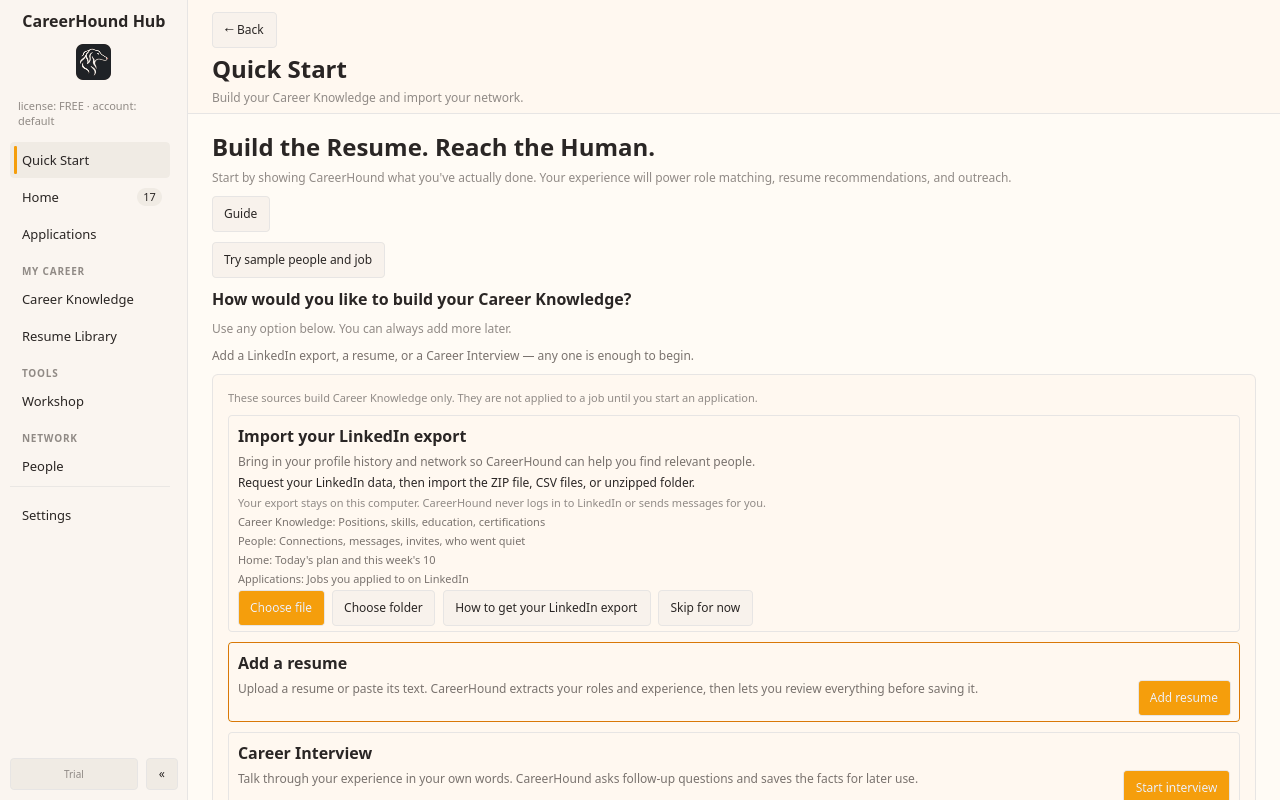
- Complete Quick Start with your own career information.
CareerHound account sign-in is separate from LinkedIn. The app never asks for your LinkedIn password.
Upload your LinkedIn export
Request your official data export from LinkedIn in your own browser. In Quick Start, choose the ZIP you received. Review the import results, then check Career Knowledge and People. You can add resume documents through Resume Library.
Work through Today
- Open People and select a person from Today.
- Review the reason, context and draft. Edit before copying.
- Send the message yourself in LinkedIn, then mark it sent in CareerHound.
- Snooze a person when a later date makes more sense.
Use Paste a LinkedIn page to review and save a conversation, profile or people search. Use Debrief / promises to review commitments and keep follow-ups visible.
Prepare an application
Open Applications, choose an opportunity and work through its workspace: analyze the role, match evidence, tailor bullets, build and review the resume, find people, prepare outreach, and track progress. Keep claims grounded in evidence you supplied.
CareerHound AI
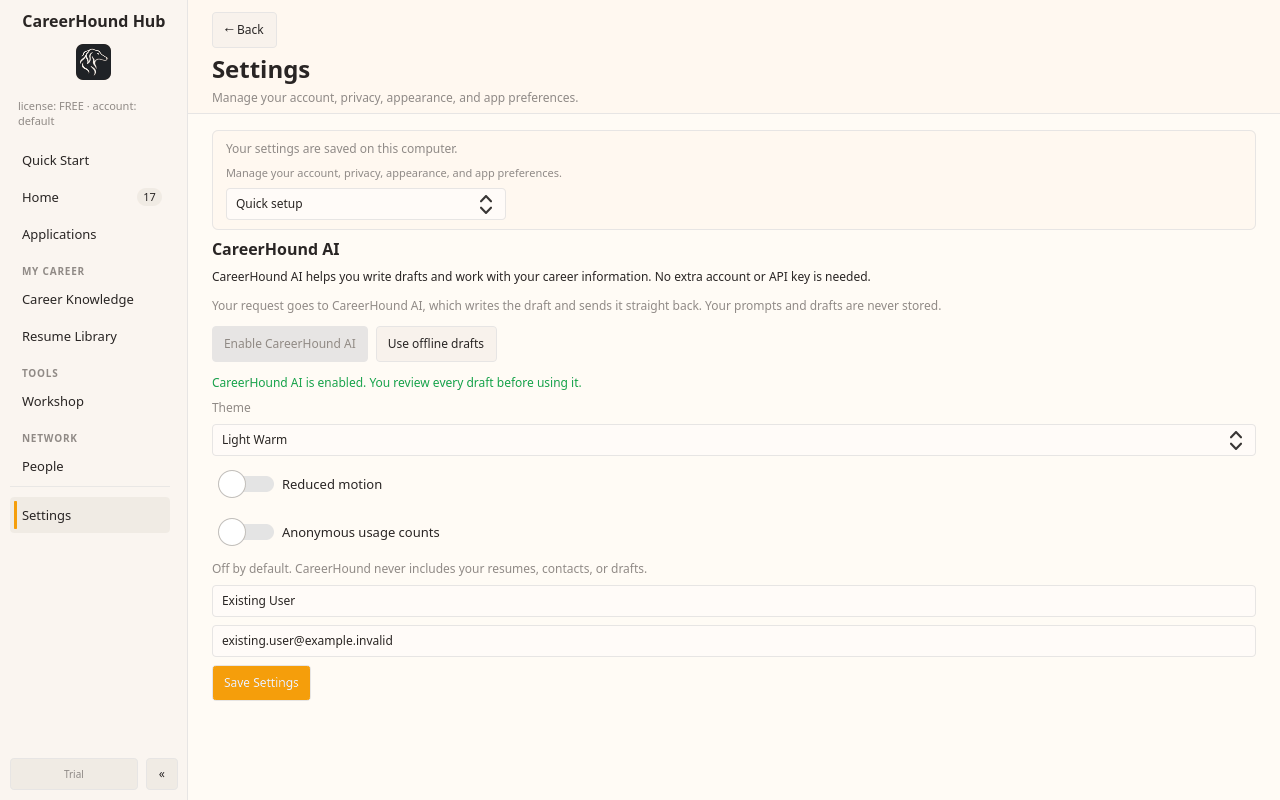
Open Settings → AI and select Enable CareerHound AI. Your CareerHound account provides access according to your plan. There are no API keys to enter or provider installations to manage.
Sharing sends the text needed for your request to CareerHound AI. Review the disclosure before enabling it. Use offline drafts turns sharing off; local records remain available. Saving Settings does not generate a draft.
Review weekly momentum
Open Weekly momentum from Home. Totals come from recorded local activity. Select a total to inspect the rows behind it. The report is a record of what you logged, not a measure of every action you took outside CareerHound.
If something does not look right
AI is unavailable
Check that you are signed in, your plan includes AI access, and sharing is enabled in Settings → AI. Check your internet connection. You can continue with offline drafts.
An import looks incomplete
Check the import summary and confirm you selected the full export ZIP. Review the source data before correcting a person or career detail.
A fresh clone still shows old data
A clone contains code; the app can still use your existing local profile. For source testing, run python tools/clean_profile.py --data-dir /path/to/a/new/profile from the project. This uses the normal login and onboarding flow without changing your existing profile.
Need help?
Email [email protected] with the app version and steps that reproduce the problem. Do not send passwords or your private export.